

Inserting Data#
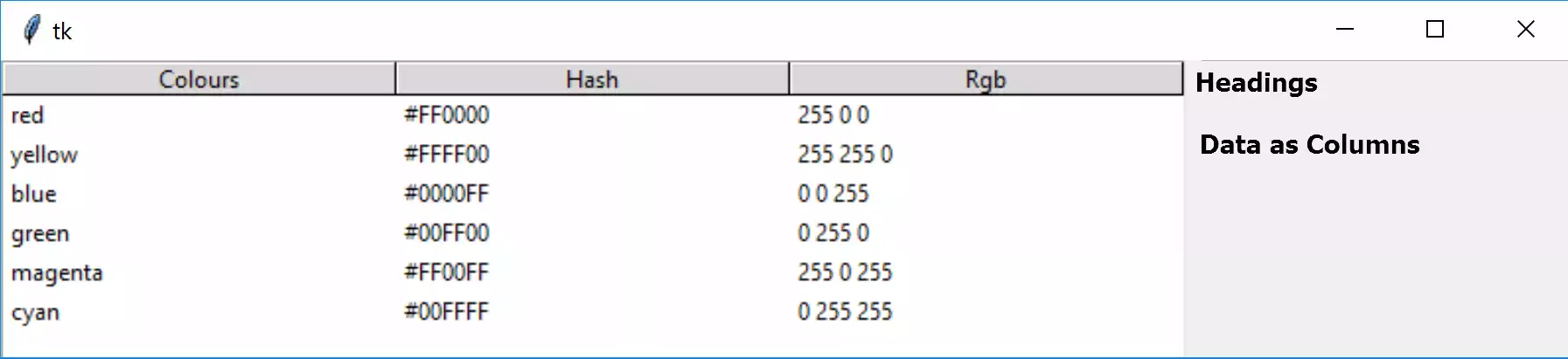
Treeview, default theme, displayed in Idle#
Note
We are using treeview exclusively as a method to display column and row data similar to a database table and not as a heirarchical set of data as in a file system.
Treeview has two display areas, the first is for column headings the second is for data, in other words the first row is the header, subsequent rows are the data. The display can be compared to a database table rather than a spreadsheet table. Normally the first column (Colours in our example) has unique values (no two items are exactly the same), other columns can duplicate data, or be unique. If we had inserted into the first column the colours with capitalised first letters, then the values for Hash and Rgb would have been duplicated, for say red and Red, but we still would have unique values for Colour.
As a starting point use the 'default' theme, so that all operating systems look similar:
from tkinter import Tk
from tkinter.ttk import Frame, Treeview, Style

root = Tk()
s = Style()
s.theme_use('default')
create a list to contain the heading data, which will be composed of colours and their properties:
tree_columns = ['Colours', 'Hash', 'RGB']
Next create a 2D tuple containing the data, for the moment restrict ourselves to the primary and secondary colours:
tree_data = (('red', '#FF0000', (255,0,0)),
           ('yellow', '#FFFF00', (255,255,0)),
           ('blue', '#0000FF', (0,0,255)),
           ('green', '#00FF00', (0,255,0)),
           ('magenta', '#FF00FF', (255,0,255)),
           ('cyan', '#00FFFF', (0,255,255)))
Now start creating the widget, notice that column is using the
column names found in tree_columns and headings should be shown:
fr0 = Frame(root)
fr0.grid(column=0, row=0, sticky='nsew')

tree = Treeview(fr0, column=tree_columns, show='headings')
tree.grid(column=0, row=0, sticky='nsew')
Now load the headings and data:
for col in tree_columns:
    tree.heading(col, text=col.title())

for item in tree_data:
    itemID = tree.insert('', 'end', values=item)

root.mainloop()
Note
RGB values
Colours in tkinter are represented by hash values whereas rgb tuples can be used in PIL. When working with tuples these are separated with commas rather than just spaces.
Check that the script looks like the following. (Click on the arrow to show/ hide the script)
Show/Hide Code 01tree.py
"""tkinter ttk treeview
    Shows data in parallel columns
"""

from tkinter import Tk
from tkinter.ttk import Frame, Treeview, Style

root = Tk()
st1 = Style()
st1.theme_use('default')

# headings and data
tree_columns = ['Colours', 'Hash', 'RGB']

tree_data = (('red', '#FF0000', (255,0,0)),
            ('yellow', '#FFFF00', (255,255,0)),
            ('blue', '#0000FF', (0,0,255)),
            ('green', '#00FF00', (0,255,0)),
            ('magenta', '#FF00FF', (255,0,255)),
            ('cyan', '#00FFFF', (0,255,255)))

fr0 = Frame(root)
# make sure that the frame adjusts, so use sticky='nsew'
fr0.grid(column=0, row=0, sticky='nsew')

# create Treeview widget
tree = Treeview(fr0, column=tree_columns, show='headings')
tree.grid(column=0, row=0, sticky='nsew')

# insert header
for col in tree_columns:
    tree.heading(col, text=col.title())

#insert data
for  item in tree_data:
    itemID = tree.insert('', 'end', values=item)

root.mainloop()
Warning
If the data is all squashed up vertically and cannot be read, open the script with Idle or PyScripter or run directly from the OS prompt. If you continue to use your original IDE then the scripts with dpi at the end should show the treeview better, though smaller.
The problem in Windows lies with the use of Ultra High Definition monitor with a change in pixel size. This is addressed in the chapter on "Set Header and Column Widths" Set Header and Column Widths. From then on either script with or without dpi should give viewable results.