

Data Selection#
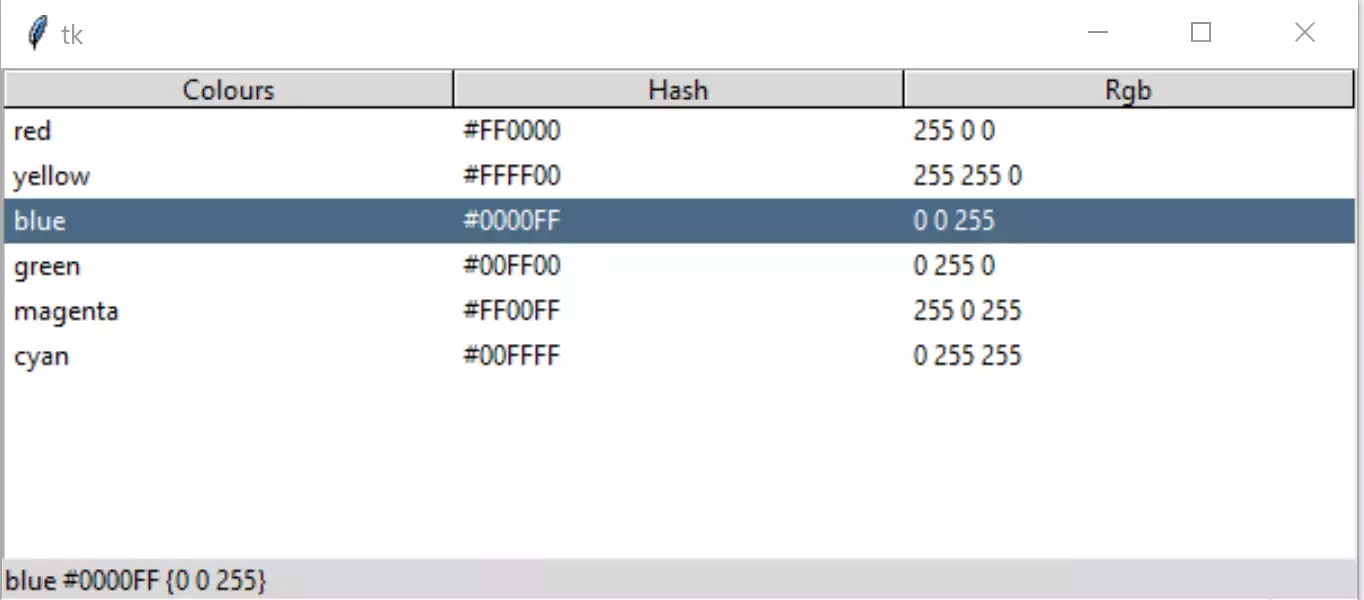
Row Selected - Result Displayed#
The basic script should bring up a simple treeview, notice that a line is highlighted when a row in the data area is pressed. Using a standard theme this is automatic.
Let's make this selection create an output, for that we need a function that is bound to an event, that in turn changes a label. Normally we bind to <<TreeviewSelect>>, alternatively bind to <ButtonRelease-1>.
We will be importing a couple of additional items from tkinter and ttk,
Label and StringVar, Label will display the selected row from the
StringVar:
from tkinter import Tk, StringVar
from tkinter.ttk import Frame, Treeview, Style, Label
Create a function select_item where we pick up "values" from the dictionary,
place this function just after s.theme_use('default'). This function is
our Event Handler. By selecting a row in the tree's data we have given it
focus, (focus is a state) we then use cur_item as an alias for the unique
item identifier for the selected row, the StringVar lvar is now set from
the dictionary tree.item(cur_item):
def select_item(evt):
    cur_item = tree.focus()
    lvar.set(tree.item(cur_item)['values'])
Bind this function to the Treeview Select event, place this just after the
Treeview definition, we are referencing select_item (no variable), the event
handler itself requires the variable evt to pass the event:
tree.bind("<<TreeviewSelect>>", select_item)
Lastly create a label using the textvariable lvar:
lvar = StringVar()
lbl = Label(fr0, textvariable=lvar, text="Ready")
lbl.grid(column=0, row=1, sticky='nsew')
Test this - you should see that only one line is selected even when making a multiple choice. Note that the rgb tuple displays although without commas separating the values.
Check that the script looks like the following. (Click on the arrow to show/ hide the script).
Show/Hide Code 02tree_select.py
"""tkinter ttk treeview
    Shows data in parallel columns, selection
  """

from tkinter import Tk, StringVar
from tkinter.ttk import Frame, Treeview, Style, Label

root = Tk()
st1 = Style()
st1.theme_use('default')

# function to enable selection
def select_item(evt):
    cur_item = tree.focus()
    lvar.set(tree.item(cur_item)['values'])

# headings and data
tree_columns = ['Colours', 'Hash', 'RGB']

tree_data = (('red', '#FF0000', (255,0,0)),
            ('yellow', '#FFFF00', (255,255,0)),
            ('blue', '#0000FF', (0,0,255)),
            ('green', '#00FF00', (0,255,0)),
            ('magenta', '#FF00FF', (255,0,255)),
            ('cyan', '#00FFFF', (0,255,255)))

fr0 = Frame(root)
fr0.grid(column=0, row=0, sticky='nsew')

# create Treeview widget
tree = Treeview(fr0, column=tree_columns, show='headings')
tree.grid(column=0, row=0, sticky='nsew')
tree.bind("<<TreeviewSelect>>", select_item)

# insert header
for col in tree_columns:
    tree.heading(col, text=col.title())

#insert data
for  item in tree_data:
    itemID = tree.insert('', 'end', values=item)

# display selection
lvar = StringVar()
lbl = Label(fr0, textvariable=lvar, text="Ready")
lbl.grid(column=0, row=1, sticky='nsew')

root.mainloop()