Canvas Move#
Essentially the canvas command move moves the object by an
amount in the required direction x and/or y after it has been identified.
This means that the amount of
movement has to be calculated, which in effect means that the start and
finish positions need to be known. For simple cases this is additional to
that required for coords but when used as handles on a frame then this
information is already required to adjust the frame.
You can follow the examples by knowing that the original drag scripts using
coords are prefixed by a 0 and those prefixed by 1 are
essentially the same scripts using move.
Drag with Move#
from tkinter import Tk, Canvas

X = 40
Y = 40

def callback(event):
    global X, Y
    drag(event.x-X, event.y-Y)
    X = event.x
    Y = event.y

def drag(dx, dy):
    can.move(circle, dx, dy)

root = Tk()
can = Canvas(root)
can.bind('<Motion>', callback)
can.pack()

circle = can.create_oval(X-20, Y-20, X+20, Y+20, fill='orange')
root.mainloop()
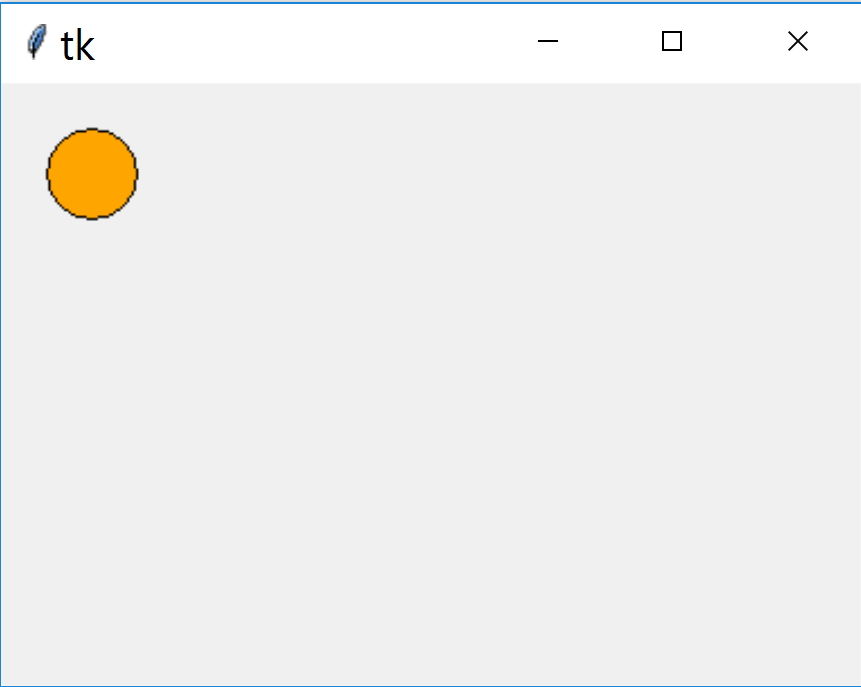
The first difference to note is that move works on an existing object, so
the circle is drawn before the cursor is over the canvas. Once the event
handler is called calculate the amount of movement required, the difference
between where the cursor is and the object's new position. These differences
are used in the drag function with move. The object is repositioned to the
cursor.
Drag and Drop with Move#
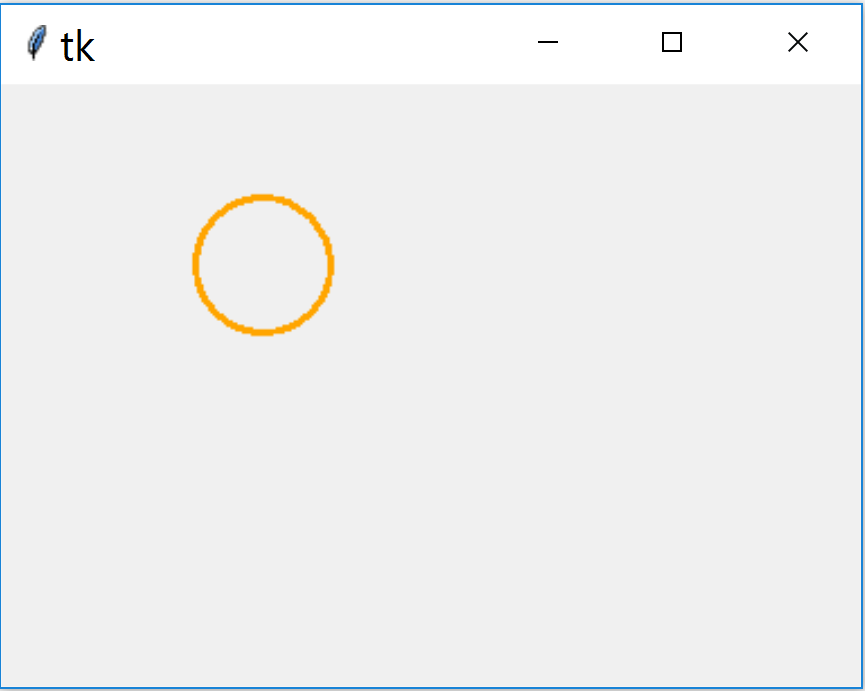
Apart from changing the bind from '<Motion>' to '<B1-Motion>' there
is no major difference between 10canvas_drag.py and 11canvas_drag_drop.py.
There is no real need to have
separate callback and drag functions.
The object is picked up by clicking anywhere within the circle and dropped to a new position by releasing the mouse button.
Show/Hide Code 11canvas_drag_drop.py
from tkinter import Tk, Canvas

X = 40
Y = 40

def callback(event):
    global X, Y
    drag(event.x-X, event.y-Y)
    X = event.x
    Y = event.y

def drag(dx, dy):
    can.move(circle, dx, dy)

root = Tk()
can = Canvas(root)
can.bind('<B1-Motion>', callback)
# can.bind('<B1-Button>', callback)
#can.bind('<Button>', find)
can.pack()

r=30
circle = can.create_oval(X-r, Y-r, X+r, Y+r, outline='orange', width=3,
    activeoutline='red')

root.mainloop()
Selecting an Object with Move#
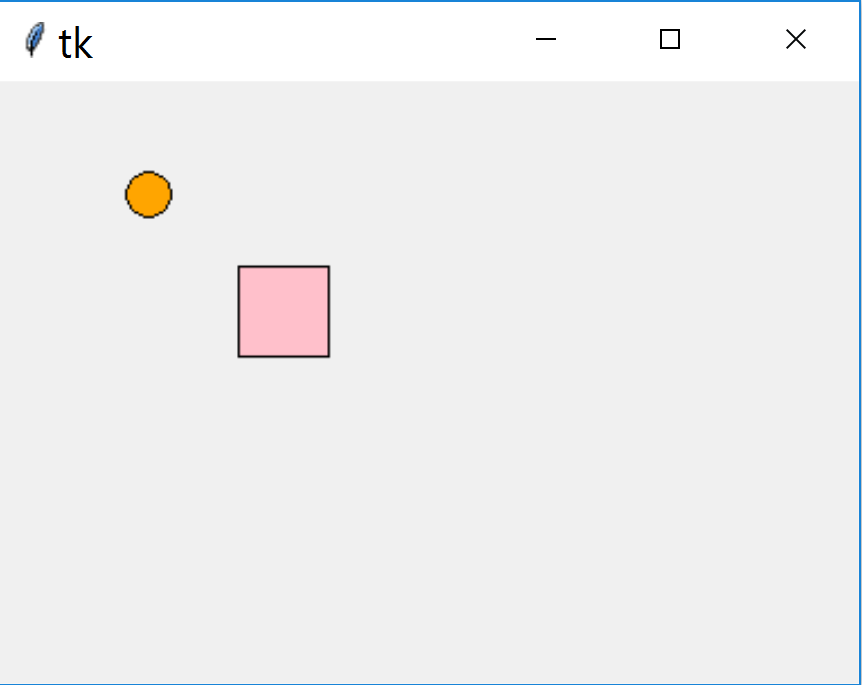
When there is more than one object it needs to be selected, just as we have
seen when using coords. The difference with move is that when the objects
change in size and shape no special provision is required, however each shape
requires its own stored positional data. A comprehensive method might involve
finding the object on pressing the mouse button, use the data when dragging,
then reset the data when releasing the mouse button.
Let's see if we can set it up to use tags instead. This avoids finding out
the object Id and the additional binds. Use find_closest to pick up the
object and its Id then find out its tag with gettags, which as noted
before gives our tag and current. Within move use the tag and the x
and y amounts to move. Afterwards update the object's position.
Show/Hide Code 12canvas_drag_drop2objects.py
from tkinter import Tk, Canvas

X0 = 20
Y0 = 20
X1 = 110
Y1 = 110

def callback(event):
    global X0, Y0, X1, Y1
    for search in can.find_closest(event.x, event.y):
        foundling = can.gettags(search)
        if foundling[0] == 'ring':
            can.move(search, event.x-X0, event.y-Y0)
            X0 = event.x
            Y0 = event.y
        elif foundling[0] == 'square':
            can.move(search, event.x-X1, event.y-Y1)
            X1 = event.x
            Y1 = event.y

root = Tk()
can = Canvas(root)
can.bind('<B1-Motion>', callback)
can.pack()

r = 10
circle = can.create_oval(X0-r, Y0-r, X0+r, Y0+r, fill='orange', tags='ring')
r = 20
square = can.create_rectangle(X1-r, Y1-r, X1+r, Y1+r, fill='pink', tags='square')

root.mainloop()
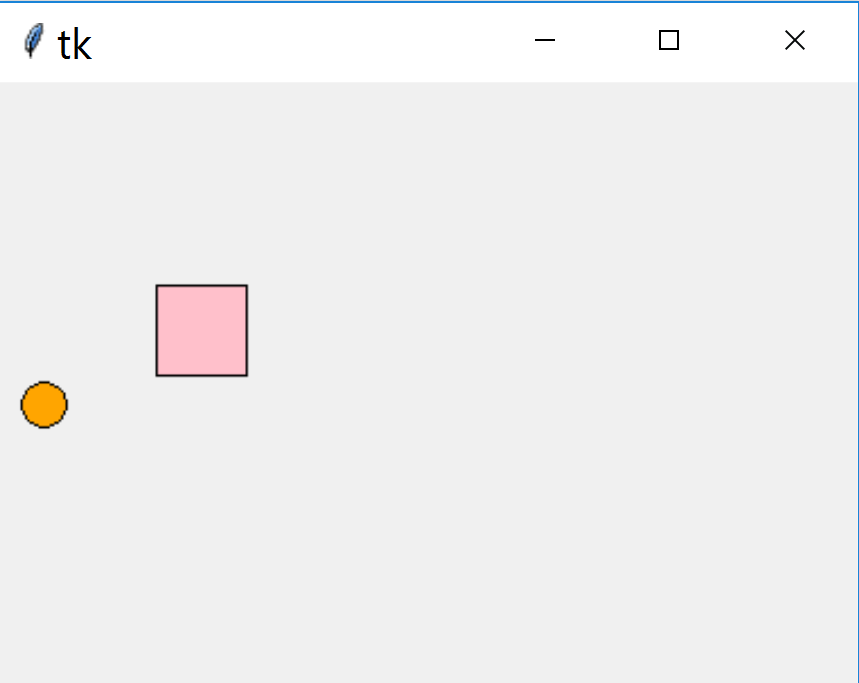
It should be simple to constrain and limit the movement of each object. The variable direction is limited in size then change the value of the x or y amount to 0 which prevents movement in that direction.
Show/Hide Code 13canvas_drag_drop_constrain.py
from tkinter import Tk, Canvas
can_width = 380
can_height = 270
X0 = 20
Y0 = 20
X1 = 110
Y1 = 110

def callback(event):
    global X0, Y0, X1, Y1
    for search in can.find_closest(event.x, event.y):
        foundling = can.gettags(search)
        if foundling[0] == 'ring':
            event.y = min(max(event.y,10), can_height-10 )
            can.move(search, 0, event.y-Y0)
            #X0 = event.x
            Y0 = event.y
        elif foundling[0] == 'square':
            event.x = min(max(event.x,20), can_width-20 )
            can.move(search, event.x-X1, 0)
            X1 = event.x
            #Y1 = event.y

root = Tk()
can = Canvas(root)
can.bind('<B1-Motion>', callback)
can.pack()

r = 10
circle = can.create_oval(X0-r, Y0-r, X0+r, Y0+r, fill='orange', tags='ring')
r = 20
square = can.create_rectangle(X1-r, Y1-r, X1+r, Y1+r, fill='pink', tags='square')

root.mainloop()
Tie into a Sketch with Move#

As noted when using 2 or more objects provided we use tags we can definitely determine which object has been selected and drive the events in our script. When a handle is moved it does not need to be deleted and redrawn, in fact the vertical handle does not affect the horizontal handle, but the rectangle is changed and must be redrawn. The differences between this script and the one for coords are minimal, apart from the change from coords to move, with their associated attributes, the position of the lower left corner (rectx, recty) is changed before calling coords or after calling move.
Show/Hide Code 14handles_to_rectangle.py
from tkinter import Tk, Canvas

can_width = 380
can_height = 270
s0 = 50, 50
s1 = 350, 250
rectx = s0[0]
recty = s1[1]

def callback(event):
    can.update()
    can_height = can.winfo_reqheight()

    for search in can.find_closest(event.x, event.y):
        global recty, rectx
        foundling = can.gettags(search)
        if foundling[0] == 'harrow':
            X = event.x
            #Y = event.y
            Y = s0[1]
            #rectx = X
            X = max(X,10)
            can.move(search, X-rectx, 0)
            can.delete('square', 'varrow')
            can.create_rectangle((X,s0[1]), (s1[0], recty), width=2, tags='square')

            Y = recty
            can.create_polygon([X,Y-10,X-5,Y-5,X-2,Y-5,X-2,Y+5,
                X-5,Y+5,X,Y+10,X+5,Y+5,X+2,Y+5,X+2,Y-5,X+5,Y-5],
                fill='lawn green',outline='lawn green', width=2,
                tags=('varrow'), activefill='red')
            rectx = X

        elif foundling[0] == 'varrow':
            Y = event.y
            X = rectx
            #recty = Y
            Y = min(Y,can_height-10)
            can.move(search, 0, Y-recty)
            can.delete('square')
            can.create_rectangle((X, s0[1]), (s1[0], Y), width=2, tags='square')
            recty = Y

root = Tk()

can = Canvas(root, width=can_width, height=can_height)
can.bind('<B1-Motion>', callback)
can.pack()


square = can.create_rectangle(s0, s1, width=2, tags='square')

x = rectx
y = s0[1]
can.create_polygon([x-10,y,x-5,y-5,x-6,y-2,x+6,y-2,
            x+5,y-5,x+10,y,x+5,y+5,x+6,y+2,x-6,y+2,x-5,y+5],
            fill='',outline='lawn green',width=2, tags=('harrow'),
            activefill='red')

x = rectx
y = recty
can.create_polygon([x,y-10,x-5,y-5,x-2,y-5,x-2,y+5,
            x-5,y+5,x,y+10,x+5,y+5,x+2,y+5,x+2,y-5,x+5,y-5],
            fill='lawn green',outline='lawn green', width=2,
            tags=('varrow'), activefill='red')

root.mainloop()
Split Move Bind#

As done with coords split out the find nearest part into a button pressed bind to a click function. As we would be using global variables otherwise, add a dataclass to pass the variables.
Once again the split seems to work better than when the find nearest is incorporated into the drag function.
Show/Hide Code 15handles_to_rectangle_split.py
from tkinter import Tk, Canvas
from dataclasses import dataclass

@dataclass
class pos:
    __slots__ = ['name', 'xval', 'yval']
    name: str
    xval: int
    yval: int

@dataclass
class dc:
    found: str
    can_width: int = 380
    can_height: int = 270

s0 = pos(name='upper left corner', xval=50, yval=50)
s1 = pos(name='lower right corner', xval=350, yval=250)
#rectx = s0[0]
#recty = s1[1]

def click(event):
    search = can.find_closest(event.x, event.y)
    dc.found = can.gettags(search)[0]

def callback(event):

    if dc.found == 'harrow':
        X = event.x
        #Y = event.y
        Y = s0.yval #s0[1]
        #rectx = X
        X = max(X,10)
        can.move(dc.found, X-s0.xval, 0)
        can.delete('square', 'varrow')
        can.create_rectangle((X,s0.yval), (s1.xval, s1.yval), width=2, tags='square')

        Y = s1.yval
        can.create_polygon([X,Y-10,X-5,Y-5,X-2,Y-5,X-2,Y+5,
            X-5,Y+5,X,Y+10,X+5,Y+5,X+2,Y+5,X+2,Y-5,X+5,Y-5],
            fill='lawn green',outline='lawn green', width=2,
            tags=('varrow'), activefill='red')
        s0.xval = X

    elif dc.found == 'varrow':
            Y = event.y
            X = s0.xval
            #recty = Y
            Y = min(Y,dc.can_height-10)
            can.move(dc.found, 0, Y-s1.yval)
            can.delete('square')
            can.create_rectangle((X, s0.yval), (s1.xval, Y), width=2, tags='square')
            s1.yval = Y

root = Tk()

can = Canvas(root, width=dc.can_width, height=dc.can_height)
can.bind('<B1-Motion>', callback)
can.bind('<ButtonPress-1>', click)
can.pack()


square = can.create_rectangle([s0.xval,s0.yval], [s1.xval,s1.yval], width=2,
    tags='square')

x = s0.xval
y = s0.yval
can.create_polygon([x-10,y,x-5,y-5,x-6,y-2,x+6,y-2,
            x+5,y-5,x+10,y,x+5,y+5,x+6,y+2,x-6,y+2,x-5,y+5],
            fill='',outline='lawn green',width=2, tags=('harrow'),
            activefill='red')

x = s0.xval
y = s1.yval
can.create_polygon([x,y-10,x-5,y-5,x-2,y-5,x-2,y+5,
            x-5,y+5,x,y+10,x+5,y+5,x+2,y+5,x+2,y-5,x+5,y-5],
            fill='lawn green',outline='lawn green', width=2,
            tags=('varrow'), activefill='red')

root.mainloop()