Introduction to DPI Awareness#
tkinter buttons, differing sizes, text boldness, highlight and shadow#
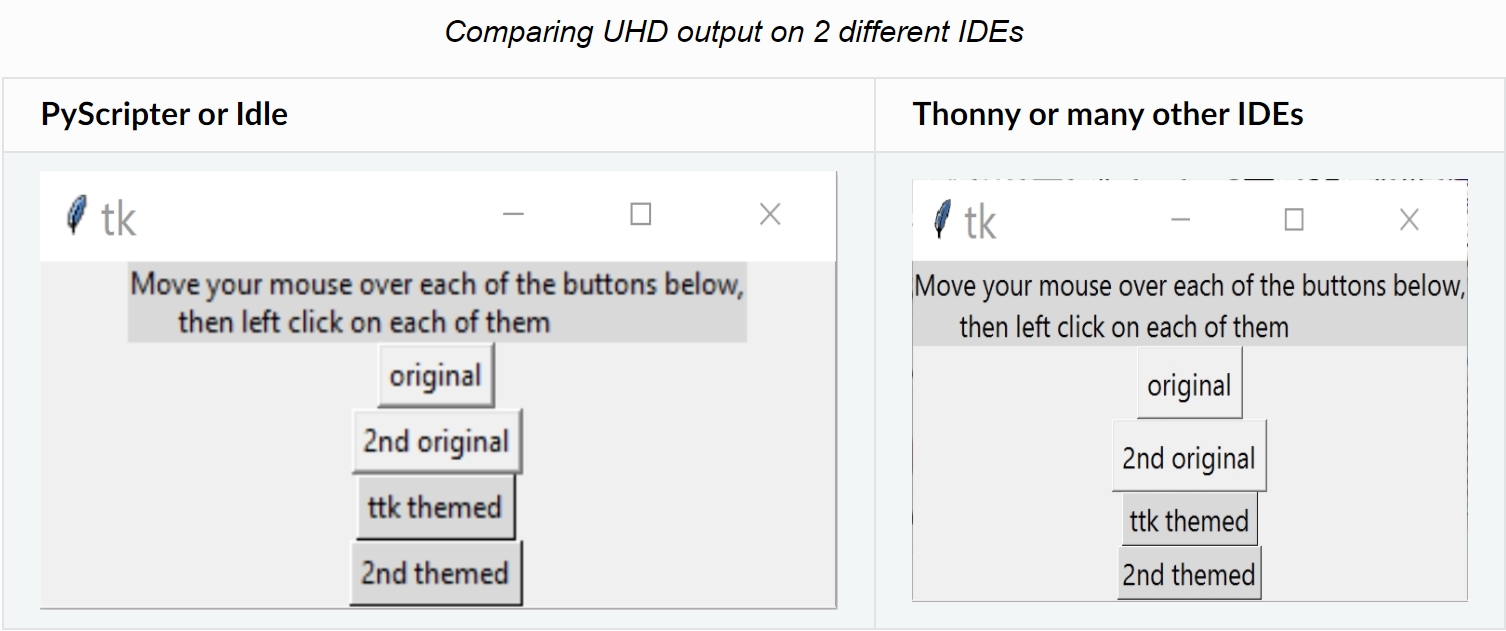
On many IDEs (Spider etc) older scripts produced results that are way too small but look correct when started from the operating system, Idle or PyScripter. This is the result of applying or not applying the higher resolution available on modern monitors. After updating to python 3.11 and the various IDEs all IDEs reacted similarly, in that they started looking like the left hand image and only changed to appearing like the right hand image after applying dpi awareness.
Note
The change was shown in Thonny as a modification that was made with Thonny 4.0.0 and since 3.3.13. "Don't SetProcessDpiAwareness for user programs anymore. This means for example, that Tkinter and Pygame programs on Windows run as if they were executed with plain Python (ie they may become blurry on modern displays). For clear picture, start your program with":
import ctypes;
ctypes.OleDLL("shcore").SetProcessDpiAwareness(1)
Older monitors changed size and aspect ratios using the same pixel size, or at least not different enough to be a problem. When monitors increased their resolution, by decreasing the pixel size, changes in the software have become necessary. As you are probably aware in many graphical programs the pixel has been the default measurement and any dimension shown as a plain integer will display as a pixel.
Most users are probably unaware about the problems with monitor resolution until it hits them forcibly at some point. There are some methods that can be used, but by no means can they be universally used without some prior knowledge of their effects. Each operating system may react differently, we may be dealing with standard tkinter (tk) or themed tkinter (ttk), scripts, functions or classes. Taking the overall mix there are too many combinations to show everything, so we will show some salient solutions and leave the rest to be tested and corrected by yourselves.
If we are lucky the program can be run in both DPI aware and unaware modes, if we are unlucky then running in DPI aware mode and applying scaling has no effect. Most scripts tend to lie somewhere between these two extremes. There are some special cases that can be treated on a widget basis, but others may be intractable.
During the following tests first run without any changes and note the problem areas. Often the original script, set up for 96dpi, can operate on a DPI aware IDE simply by making the program DPI aware, then use the tk scaling function after finding out the ratio of current dpi to the original dpi. Check out the result to see whether it is as expected:
from ctypes import windll

# with Windows set the script to be dpi aware before calling Tk()
windll.shcore.SetProcessDpiAwareness(1)
.......
root = Tk()

# shcore gives the scaling factor directly
scaleFactor = windll.shcore.GetScaleFactorForDevice(0) / 100
#ORIGINAL_DPI = 96
#current_dpi = root.winfo_fpixels('1i') # valid for Linux, Windows
#SCALE = current_dpi / ORIGINAL_DPI

# when current_dpi is 192 SCALE becomes 2.0
root.tk.call('tk', 'scaling', scaleFactor)
Note
Apart from these few lines no further script changes are normally necessary.
Once DPI awareness has been set no further change can be made, so an IDE
that is normally DPI aware cannot revert to DPI unaware (96dpi), but a DPI
unaware IDE can become DPI aware (192dpi say) but cannot again become DPI
unaware in that session. Any part of the program that uses set sizes in pixels
rather than ratios may need to be changed if scaling does not have the
required effect.
Start testing with a mixture of standard widgets, then progress through the rest of this chapter.