Scaleable Checkbuttons#

Drawing the Checkbutton#
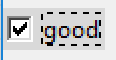
alt theme checkbutton selected with focus

Selected and Focused Checkbutton run in the alt Theme#

As found out in the dpi awareness chapter checkbuttons made with the alt theme are not scaleable. There is no simple solution to sizing to be found in third party themes, because most of these themes are based on images the widgets and all their states. Scaling up would involve duplicating all the images. However by copying the methods from these third party themes one can then draw the widgets at the time of use. This means that the widget image is first scaled then made tkinter readable.

Draw the widget in PIL but instead of saving to disk, convert with ImageTk.PhotoImage then within tkinter create a new theme, using alt as the parent. This method is largely based on that used when creating the lime theme. It is important to determine which states should be included.

First let us determine what the Style options can tell us, open an interactive python window:

>>> from tkinter import Tk

>>> from tkinter.ttk import Style, Checkbutton

>>> from pprint import pprint

>>> root = Tk()

>>> s = Style()

>>> s.theme_use('alt')

>>> pprint(s.layout('TCheckbutton'))

[('Checkbutton.padding',
    {'children': [('Checkbutton.indicator', {'side': 'left', 'sticky': ''}),
            ('Checkbutton.focus',
             {'children': [('Checkbutton.label', {'sticky': 'nswe'})],
              'side': 'left',
              'sticky': 'w'})],
    'sticky': 'nswe'})]

>>> s.element_options('Checkbutton.padding')
('padding', 'relief', 'shiftrelief')

>>> s.element_options('Checkbutton.indicator')
('background', 'foreground', 'indicatorcolor', 'lightcolor', 'shadecolor',
    'bordercolor', 'indicatormargin')

>>> s.element_options('Checkbutton.label')
('compound', 'space', 'text', 'font', 'foreground', 'underline', 'width',
    'anchor', 'justify', 'wraplength', 'embossed', 'image', 'stipple',
    'background')

>>> s.element_options('Checkbutton.focus')
('focuscolor', 'focusthickness')

As shown before there is no element that can be used to change the widget size. Since the element names for the indicator are known, we should be able to find out the colours used in various states using s.lookup, but most refuse to show or change for the various states.

Using a screen capture on the alt theme find out the widget shapes, sizes and colours for the various states. It will be found that the check and radio buttons are relatively small with two borders each one pixel wide.

Hint

If the borders appear to be a different size then this is due to the screen capture being fooled by the dpi. On my screen the captured images were two pixels wide and the size was twice as big as the original.

Border colours changed from top left to bottom right, so the borders will need to be drawn as lines rather than rectangles. There was no attempt at antialiasing.

As the widget is scaled up the line becomes wider and the line positioning also changes, and the original positioning no longer suffices.

Once a method has been found to draw a checkbutton, run and store the results for each of the states, only the colours will be changing from state to state. With a check button the theme background colour does not need to be drawn, unless the colour is pulled across as with the pressed state. Use dictionaries to store states and colours. The dictionary line_colours is a nested dictionary using state as the primary key, each of the inner dictionaries contain the primary keys topleft, botright, intopleft and inbotright and their colours. The next dictionary stores the inner background colour using state as the primary key.

Store the Pil drawing to a tkinter PhotoImage in a dictionary with state as the primary key. After this the widget is displayed as one would with an image based theme.

Displaying the Checkbutton#

As shown in Putting on the Style, Radio and Check Buttons make a command for Style to create a theme, that in our case, has alt as the parent. Insert the required states, remembering that the compound state preceeds the single state (<disabled, alternate> is directly followed by <alternate>). Style needs to map the background colour when the widget is active.

Then display a pair of checkbuttons and add a third to disable/!disable one of the two checkbuttons. The states for (active, selected) and active seem redundant so test the functionality by remarking out these when creating the theme. The check buttons worked as expected.

Show/Hide Code create_checkbuttons_direct.py

from PIL import Image, ImageDraw, ImageTk
from tkinter import Tk
from tkinter.ttk import Style, Frame, Checkbutton, Label

checkimg = {}
switch = 0

states = ['background', 'active', ('disabled', 'selected'), ('active', 'selected'),
             'selected','disabled', ('disabled', 'alternate'), 'alternate',
             'pressed']

line_colours = {'selected': {'topleft': "#888888",
                            'botright': None,
                            'intopleft': "#414141",
                            'inbotright': "#d9d9d9"},
                'alternate': {'topleft': "#888888",
                            'botright': "#888888",
                            'intopleft': "#414141",
                            'inbotright': "#d9d9d9"},
                'active': {'topleft': "#888888",
                            'botright': 'white',
                            'intopleft': "#414141",
                            'inbotright': "#ececec"},
    ('active', 'selected'): {'topleft': "#888888",
                            'botright': 'white',
                            'intopleft': "#414141",
                            'inbotright': "#ececec"},
                'disabled': {'topleft': "#888888",
                            'botright': None,
                            'intopleft': "#aaaaaa",
                            'inbotright': None},
                'pressed': {'topleft': "#888888",
                            'botright': None,
                            'intopleft': "#414141",
                            'inbotright': None},
                'background': {'topleft': "#888888",
                            'botright': 'white',
                            'intopleft': "#414141",
                            'inbotright': "#d9d9d9"},
   ('disabled', 'alternate'): {'topleft': "#888888",
                            'botright': "#aaaaaa",
                            'intopleft': "#414141",
                            'inbotright': None},
   ('disabled', 'selected'): {'topleft': "#888888",
                            'botright': None,
                            'intopleft': "#aaaaaa",
                            'inbotright': None}
                            }

imagebg = {'selected': 'white', 'alternate': "#aaaaaa",
    'active': 'white', 'disabled': "#d9d9d9", 'pressed': "#d9d9d9",
    'background': 'white', ('disabled', 'alternate'): "#d9d9d9",
    ('disabled', 'selected'): "#d9d9d9", ('active', 'selected'): 'white'}

def draw_widgets(scaling):
    width, height = int(15*scaling), int(15*scaling)
    b = int(1*scaling)

    for ix, state in enumerate(states):
        image = Image.new('RGB', (width,height), imagebg[state])
        idraw = ImageDraw.Draw(image)

        idraw.line([(0,(b-1)//2), (width-b-1,(b-1)//2)], width=b,
            fill=line_colours[state]['topleft'])
        idraw.line([((b-1)//2,0), ((b-1)//2,height-b-1)], width=b,
            fill=line_colours[state]['topleft'])

        if line_colours[state]['botright']:
            idraw.line([(0,height-1-b//2), (width-1,height-1-b//2)], width=b,
                fill=line_colours[state]['botright'])
            idraw.line([(width-1-b//2,0), (width-1-b//2,height-1)], width=b,
                fill=line_colours[state]['botright'])

        idraw.line([(b,b+(b-1)//2), (width-2*b-1,b+(b-1)//2)], width=b,
            fill=line_colours[state]['intopleft'])
        idraw.line([(b+(b-1)//2,b), (b+(b-1)//2,height-2*b-1)], width=b,
            fill=line_colours[state]['intopleft'])

        if line_colours[state]['inbotright']:
            idraw.line([(b,height-1-b//2-b), (width-b-1,height-1-b//2-b)], width=b,
                fill=line_colours[state]['inbotright'])
            idraw.line([(width-1-b//2-b,b), (width-1-b//2-b,height-b-1)], width=b,
                fill=line_colours[state]['inbotright'])

        if state in ('selected',('disabled','selected')):
            # tick
            idraw.line([4*b, 6*b, 4*b, 9*b],
                fill='black' if state == 'selected' else '#a3a3a3', width=b)
            idraw.line([5*b, 7*b, 5*b, 10*b],
                fill='black' if state == 'selected' else '#a3a3a3', width=b)
            idraw.line([6*b, 8*b, 6*b, 11*b],
                fill='black' if state == 'selected' else '#a3a3a3', width=b)
            idraw.line([7*b, 7*b, 7*b, 10*b],
                fill='black' if state == 'selected' else '#a3a3a3', width=b)
            idraw.line([8*b, 6*b, 8*b, 9*b],
                fill='black' if state == 'selected' else '#a3a3a3', width=b)
            idraw.line([9*b, 5*b, 9*b, 8*b],
                fill='black' if state == 'selected' else '#a3a3a3', width=b)
            idraw.line([10*b, 4*b, 10*b, 7*b],
                fill='black' if state == 'selected' else '#a3a3a3', width=b)

        checkimg[state] = ImageTk.PhotoImage(image)

def show_widgets(fr, scaling):
    st0 = Style()

    st0.theme_create( "altflex", parent="alt", settings={

        'Checkbutton.indicator': {"element create":
                ('image', checkimg['background'],
                ('disabled', 'selected', checkimg[('disabled', 'selected')]),
                ('disabled', checkimg['disabled']),
                ('pressed', checkimg['pressed']),
                ('disabled', 'alternate', checkimg[('disabled', 'alternate')]),
                ('alternate', checkimg['alternate']),
                #('active', 'selected', checkimg[('active', 'selected')]),
                #('active', checkimg['active']),
                ('selected', checkimg['selected']),
                { 'sticky': "w", 'padding':3*scaling})
                }})

    st0.theme_use('altflex')
    st0.map('TCheckbutton', background=[('active',"#ececec")])
    st0.map('TRadiobutton', background=[('active',"#ececec")])

    def change():
        global switch
        if switch == 0:
            widg.state(['disabled']) # active
            #print(widg.state())
        else:
            widg.state(['!disabled']) # !active
        switch = 1 if switch == 0 else 0

    widg = Checkbutton(fr, text='Cheese' ,width=-8)
    widg1 = Checkbutton(fr, text='Tomato' ,width=-8)
    widg.grid(column=0,row=15,sticky='nsew', padx=5, pady=5)
    widg1.grid(column=0,row=16,sticky='nsew', padx=5, pady=5)

    #run_state(fr,widg,widg1)
    c = Checkbutton(root, text='disable/enable top checkbutton', command=change)
    c.grid(column=0, row=17, pady=5, sticky='w')
    label = Label(root, text='selected image on label', \
            image=checkimg[('selected')], compound='left')
    #label.image = checkimg['selected']
    label.grid(column=0,row=18,sticky='nsew', padx=5, pady=5)

if __name__ == "__main__":
    root = Tk()
    winsys = root.tk.call("tk", "windowingsystem")
    BASELINE = 1.33398982438864281 if winsys != 'aqua' else 1.000492368291482
    scaling = root.tk.call("tk", "scaling")
    dpi_scaling = int(scaling / BASELINE + 0.5)
    fr0 = Frame(root)
    fr0.grid(column=0,row=0,sticky='nsew')
    draw_widgets(dpi_scaling)
    show_widgets(fr0, dpi_scaling)

    root.mainloop()