Is Your Program DPI Aware#
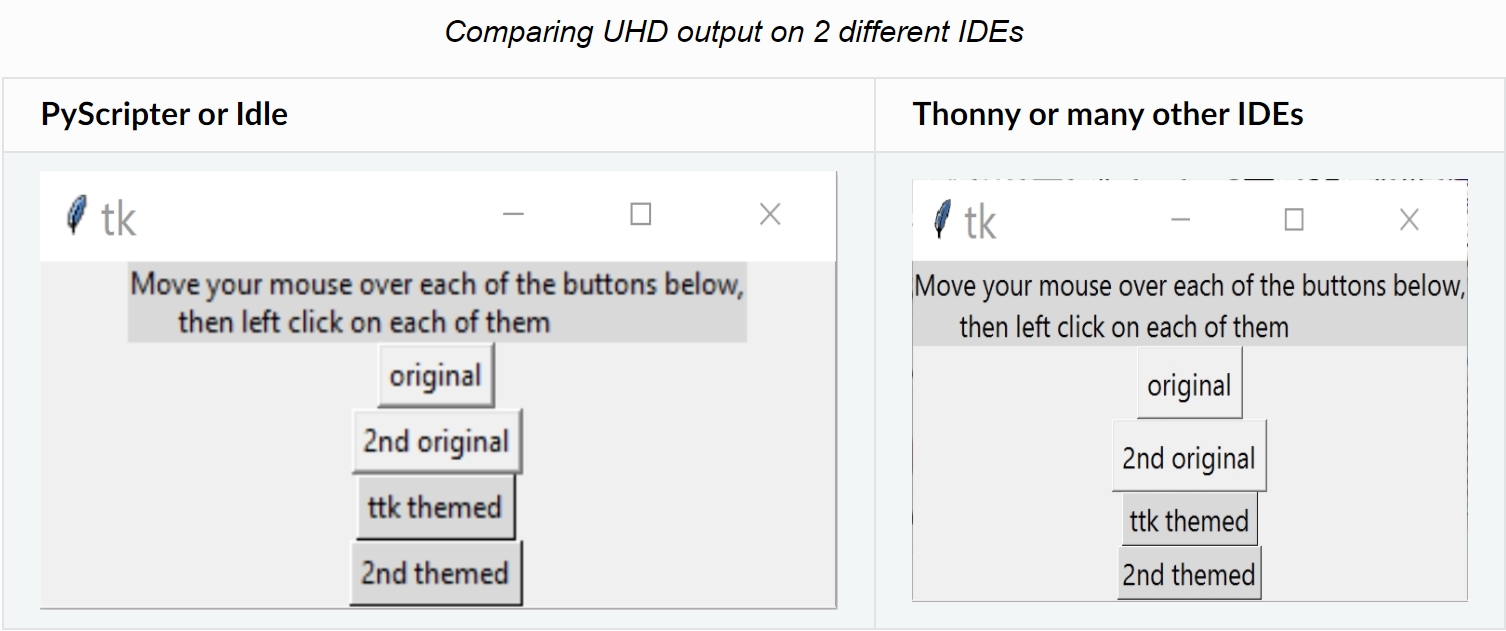
tkinter buttons, same sizes differing highlight and shadow#
Many programs are not DPI (dots per inch) aware, and users may realize something has changed but are not sure what is happening and how to correct for the effect.
The most obvious change is that older programs may appear smaller on many IDEs, but look as normal when started from the operating system, Idle or PyScripter, at least that is the case for Windsows programs with an Ultra High Definition (UHD) monitor working on tkinter. You may see a change to the font being less bold in the new setup. Some widgets may appear to have less pronounced highlighting and shadows and the broken lines showing which button was last activated can be hard to see.
Older monitors changed size and aspect ratios using the same pixel size, or at least not different enough to be a problem. When monitors increased their resolution, by decreasing the pixel size, changes in the software have become necessary. As you are probably aware in many graphical programs the pixel has been the default measurement and any dimension shown as an integer will display as a pixel.
As fonts are sized in points they should stay constant in size no matter
which monitor is used, whereas a drawing with line width and length in
pixels can change from monitor to monitor. To complicate matters different
IDEs may or may not interreact automatically with the monitor. The
first priority is to check whether a GUI and IDE work as expected, in a
manner that suits your application. Most standard widgets add any writing
after they are created, so there is no major problem when the widget expands
to accommodate the lettering, however when custom widgets have lettering and
drawing then expect major difficulties. Also with some widgets, such as the
scrollbars, it may be difficult to see their arrows or bars as they have
shrunk in size. Some widgets such as the Treeview need to have their line
spacing adjusted for both the font and whether the IDE is DPI aware, but it
only seems to adjust when the theme is Vista on my Windows machine.
It would appear that running in DPI aware mode ensures that the results are
the same between the OS and IDE which means that many older scripts the
output will shrink in size. We can force dpi awareness by inserting the
statement SetProcessDpiAwareness(1) into the script. Other than small
scripts, most things on the canvas need to be enlarged and the widths
increased, in my
case about 2.25 times. Remember text remains unchanged due to it being point
as opposed to pixel based. To compensate for the shrinking, either the pixel
count is increased, or the pixels are changed to a length (points). There
may be a loss in speed as the pixel count is increased -
so you may have to optimize. Some configurations are difficult to change to
a length based systems, such as an image import.
When increasing the size with the call to tk.scaling the text changed along
with canvas size. The rate of change was not the same, so the text size
changed more than the canvas. Since the text remain unchanged whether dpi
aware or not this was of no use. tk.scaling can only be used if the text
is not scaled and created before the call to tk.scaling.
When applying a factor to the application it is useful to know the size of
the monitor. We can
confirm from the OS settings, in my case a UHD monitor has 3840x2160 pixel
size. When querying the screen size Idle/Windows command shows 1707x960 pixels
when not dpi aware (default mode) but shows 3840x2160 pixels when
SetProcessDpiAwareness is switched on. Screen sizes were obtained by using the
tkinter inbuilt functions winfo_screenwidth() and winfo_screenheight().
The difference in the monitor widths and heights gives the
scaling factor that can be applied.
Let's compare simple widgets using WX or QT5. Button widgets and its text in tkinter were the same size in different IDEs, but shadows and highlights in the widget were not so easy to see in Thonny. WX gave different sized buttons, but the text stayed the same size, text weight was lighter in Thonny. QT5 made both button sizes as though they were dpi aware, whilst the font size became smaller than originally intended. All this means that the original sizes of older scripts cannot be seen unless one uses an older monitor or run with PyScripter, or Idle or directly from the OS, using either tkinter or WX.
Note
Click on arrow to show the code, which can be hidden by clicking again on the arrow.
The ruler shows the old scale of pixels (96 dpi), whereas there are 210 dpi on my monitor, this means that 100 pixels shows as 45 on this ruler.
Show/Hide Code 04nb_adjust.py
""" Comparing the Button widgets

Compare different methods of running python.
"""
from tkinter.ttk import Style, Label
from tkinter import Tk
from tkinter import Button as origbutton
from tkinter.ttk import Button as tilebutton

root=Tk()
s = Style()
# using the ttk default scheme
s.theme_use('default')
Label(root,text='Move your mouse over each of the buttons below,\n \
      then left click on each of them').pack()
origbutton(root,text='original').pack()
origbutton(root,text='2nd original').pack()
tilebutton(root,text='ttk themed').pack()
tilebutton(root,text='2nd themed').pack()

root.mainloop()
tkinter buttons, same sizes differing highlight and shadow#
Show/Hide Code wxbutton.py
import wx


class Example(wx.Frame):

    def __init__(self, *args, **kwargs):
        super(Example, self).__init__(*args, **kwargs)
        self.InitUI()

    def InitUI(self):
        self.locale = wx.Locale(wx.LANGUAGE_ENGLISH)

        # create parent panel for button
        self.pnl = wx.Panel(self)

        # create button at point (20, 20)
        self.st = wx.Button(self.pnl, id = 1, label ="Button", pos =(20, 20),
                            size =(300, 40), name ="button")

        # change size of button
        self.st.SetSize((100, 50))

        self.SetSize((350, 250))
        self.SetTitle('wx.Button')
        self.Centre()

def main():
    app = wx.App()
    ex = Example(None)
    ex.Show()
    app.MainLoop()


if __name__ == '__main__':
    main()

wx buttons, left PyScripter, right Thonny#
Show/Hide Code qtbutton.py
from PyQt5 import QtWidgets
from PyQt5.QtWidgets import QApplication, QMainWindow
import sys
import ctypes
ctypes.windll.user32.ShowWindow(ctypes.windll.kernel32.GetConsoleWindow(), 0)

def update():
    label.setText("Updated")

def retrieve():
    print(label.text())

app = QApplication(sys.argv)
win = QMainWindow()
win.setGeometry(400,400,500,300)
win.setWindowTitle("CodersLegacy")

label = QtWidgets.QLabel(win)
label.setText("GUI application with PyQt5")
label.adjustSize()
label.move(100,100)

button = QtWidgets.QPushButton(win)
button.clicked.connect(update)
button.setText("Update Button")
button.move(100,150)

button.setStyleSheet("background-color: red;font-size:18px;font-family:Times New Roman;");

button2 = QtWidgets.QPushButton(win)
button2.clicked.connect(retrieve)
button2.setText("Retrieve Button")
button2.move(100,200)

win.show()
sys.exit(app.exec_())
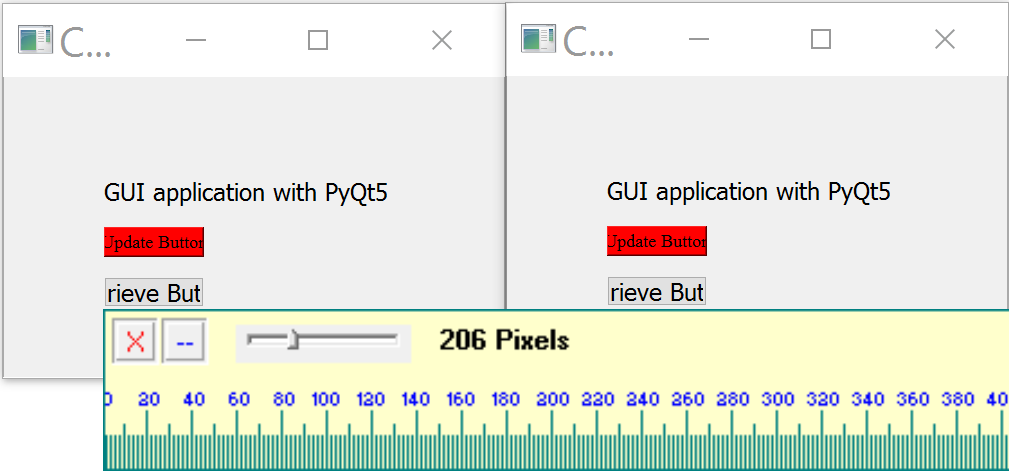
qt5 buttons, left PyScripter, right Thonny, same size#
Thonny IDE with later versions of python, had problems with the locale when running WX, Error: Unable to set default locale: 'unsupported locale setting'. In PyScripter WX ran with no error. Thonny also had a problem running QT5, which showed an error qt.qpa.fonts: Unable to open default EUDC font: "C:\Windows\FONTS\EUDC.TTE", at least that was the case with Windows. This error could be corrected in QT5 for PyScripter by adding:
import ctypes
ctypes.windll.user32.ShowWindow(ctypes.windll.kernel32.GetConsoleWindow(), 0)